Mental Health & Better Access Quality Improvement - Activity 1
Home / News & Opportunities / Latest news / Current post
June 9, 2026
Data cleansing ensures your mental health register is accurate, up-to-date, and supports high-quality care, QI reporting, and compliance. The process involves identifying and archiving inactive patients, correcting missing or uncoded data, and ensuring all relevant clinical information is coded and current.
Preparation
- Assemble your QI/data team: Include clinical, admin, and IT staff.
- Back up your database: Always back up before making bulk changes.
- Ensure your practice has access to POLAR for reporting and cross-checks.
- Review relevant guides:
Step-by-step guide
Step 1: Identify and Archive Inactive Patients
Best Practice Premier
- Go to Utilities > Search > Deactivate Patient.
- Use the search criteria (e.g., “Not seen since” a chosen date, such as 2 years ago).
- Review the list and select patients to archive.
- Deactivate in bulk or individually as appropriate.
- Database Search: Mark patients as inactive or deceased
Medical Director
- From the main menu, click Search > Patients.
- Tick “Not seen since” and enter your cut-off date.
- Run the search and review the list.
- To inactivate a patient:
- Select the patient, click Edit, and set status to “Inactive”.
- Save changes.
- For bulk inactivation, repeat as needed.
- Database Search: Mark patients as inactive or deceased
Step 2: Clean Up Uncoded or Free Text Diagnoses
Best Practice Premier
- Use the Past History Cleanup tool:
- Go to Utilities > Past History Cleanup.
- Review uncoded (free text) entries.
- Map each to a coded diagnosis using the dropdown list.
- Replace free text with the appropriate code.
- Ensure all mental health diagnoses are coded, not free text.
- Database Search: Mark patients as inactive or deceased
Medical Director
- Go to Patient > Past History.
- Review for uncoded or duplicate entries.
- Link or replace free text with a coded diagnosis.
- Remove duplicates and mark resolved/irrelevant items as inactive.
- Patient Database Clean-up Tips
Step 3: Review and Update Demographics and Clinical Data
- Check for missing or outdated demographic fields (e.g., address, phone, Medicare number, Indigenous status).
- Update missing clinical items (e.g., allergies, medications, recalls, reminders).
- Remove or update old, irrelevant, or duplicate entries.
- Ensure all allergies and adverse reactions are recorded and coded.
Step 4: Review and Update Mental Health Medications and Diagnosis
- Identify patients on mental health medications without a coded diagnosis.
- Use your software’s reporting tools to generate these lists for follow-up.
Step 5: Document and Reflect
- Record the number of records archived, diagnoses coded, and missing data corrected.
- Use audit worksheets or run charts to track progress.
- Reflect as a team: What worked? What needs improvement?
- Schedule regular (e.g., annual) data cleansing as a standing QI activity.
Key Tips and Resources
- Best Practice Premier: Deactivate Patient
- Medical Director: Patient Database Clean-up Tips
Summary table
| Step | Best Practice Premier | Medical Director |
|---|---|---|
| 1. Archive Inactive Patients | Utilities > Search > Deactivate Patient | Search > Patients > Not seen since |
| 2. Clean Up Diagnoses | Utilities > Past History Cleanup | Patient > Past History |
| 3. Update Demographics/Clinical | Patient record > Edit fields | Patient record > Edit fields |
| 4. Review Mental Health Medications and Diagnosis | Reports | Reports |
| 5. Document & Reflect | Audit worksheet/run chart | Audit worksheet/run chart |
Latest news
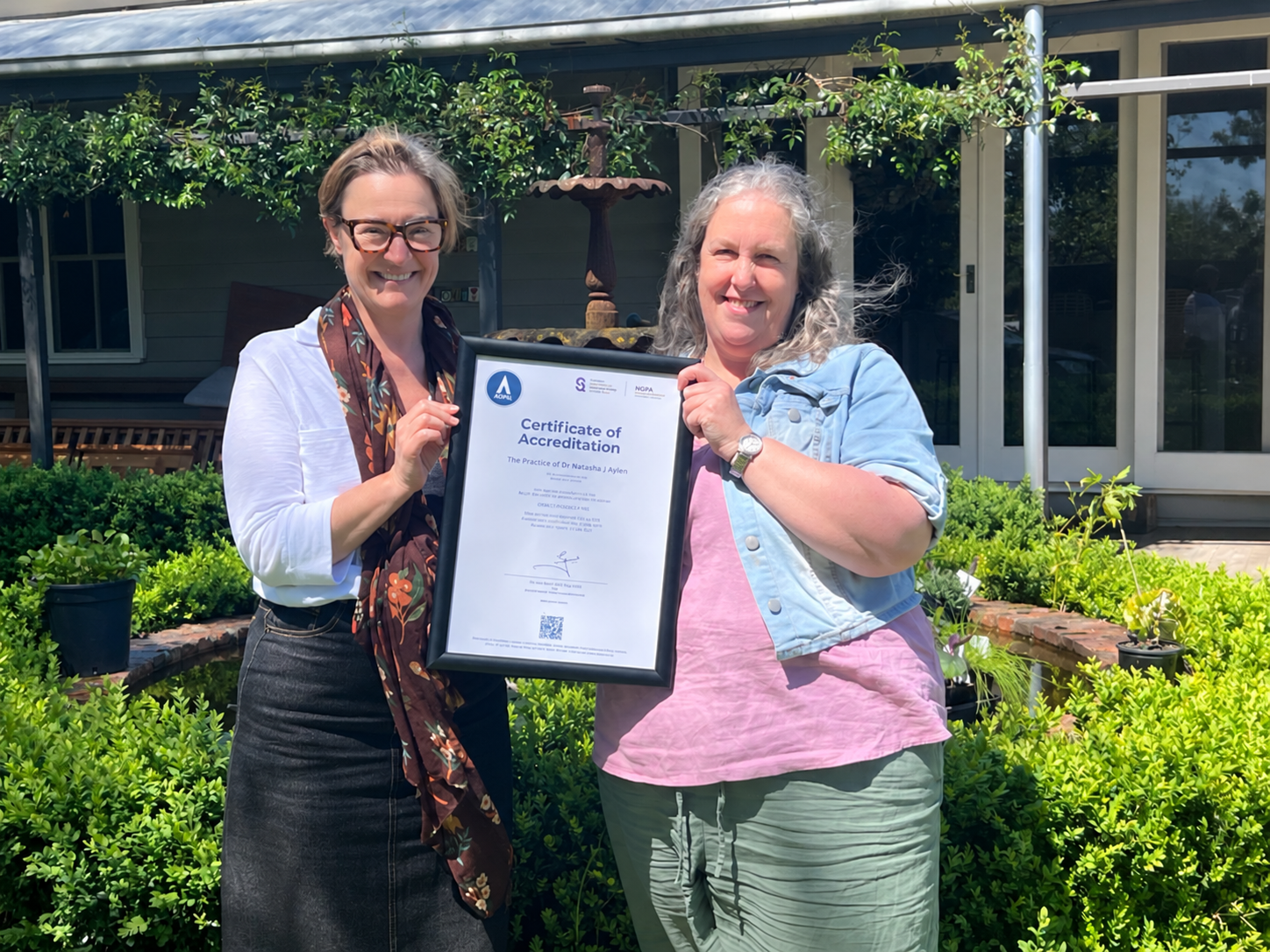
Mornington Peninsula-based practice Fernbank has become the first non-traditional general practice in south east Melbourne to achieve accreditation – an important milestone for a two-person practice delivering care entirely within residential aged care homes.

SEMPHN-approved research supported by de-identified general practice data from POLAR has contributed to an important update to national vaccine safety information.

18 October marks World Menopause Day, an annual opportunity to raise global awareness, reduce stigma and provide education around perimenopause and menopause.